Ceph Calamari:生存指南
Ceph Calamari:分步指南 
 |
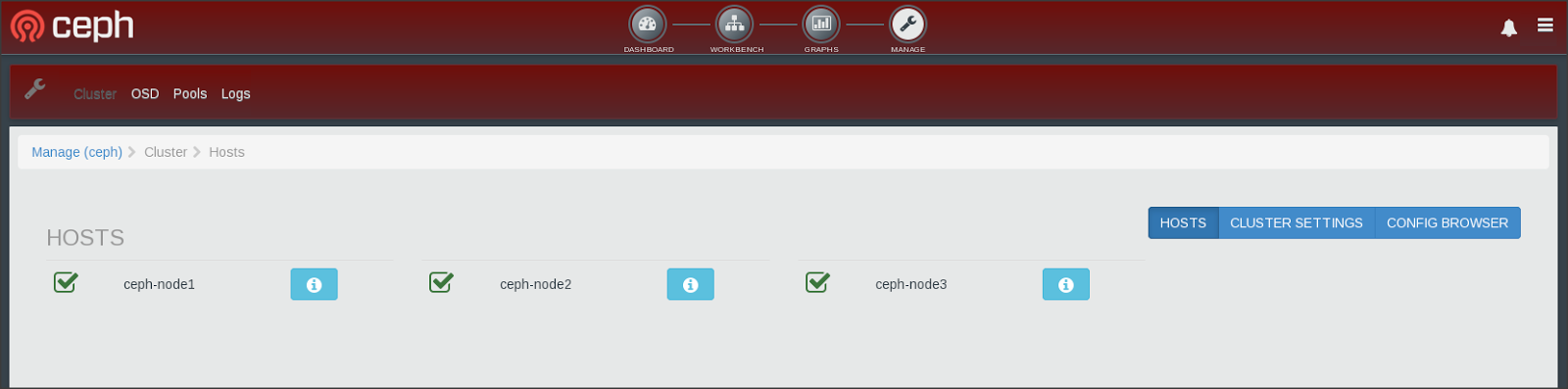
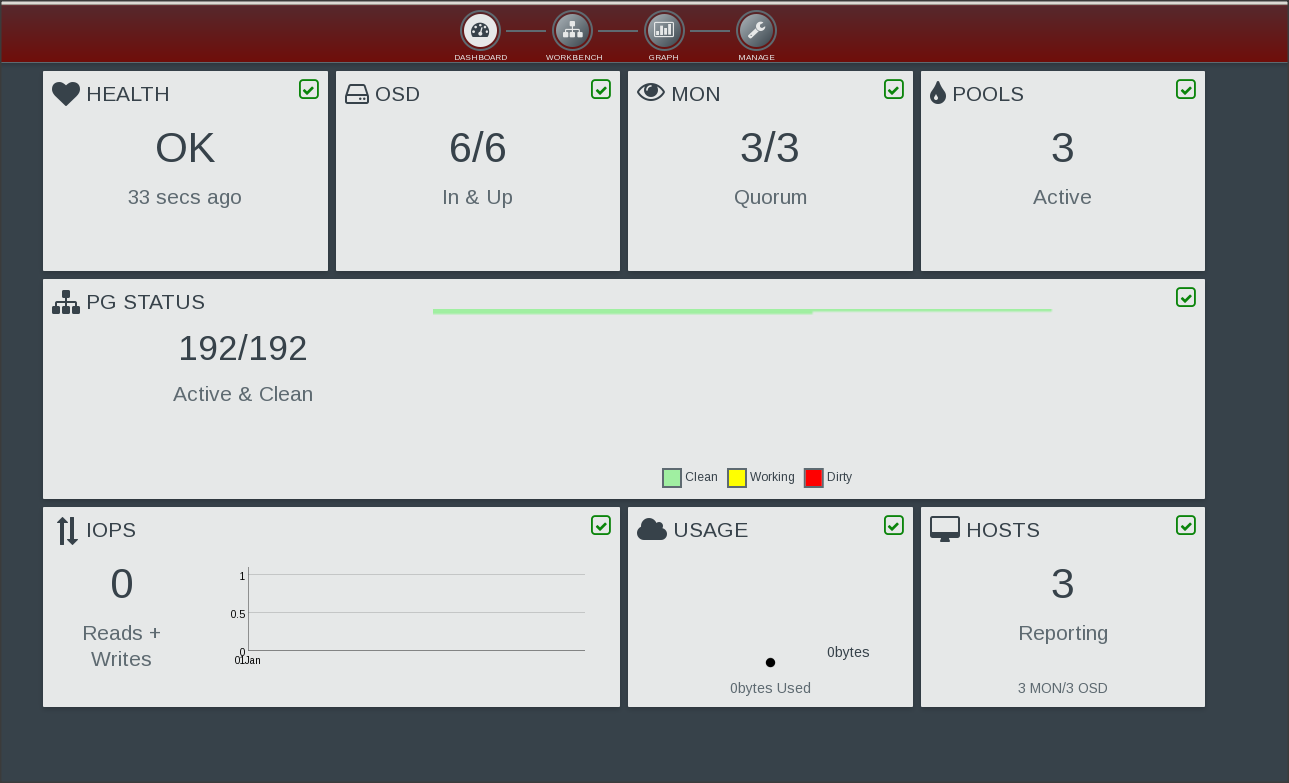
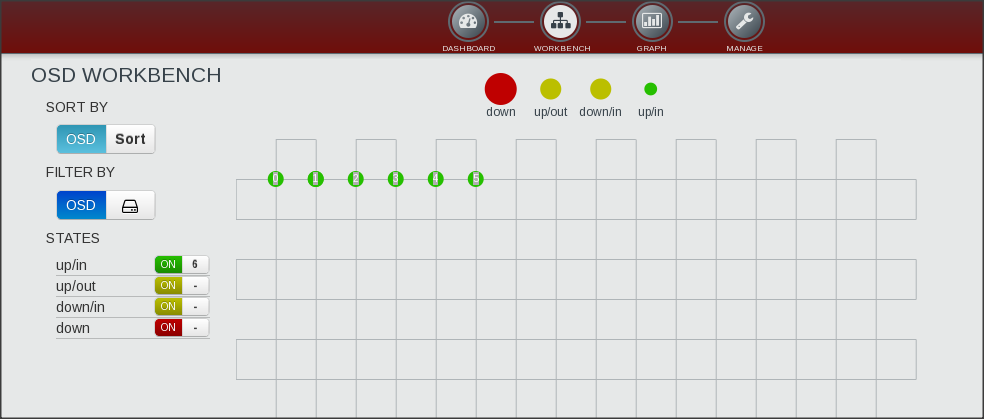
Calamari 是 Ceph 存储集群的管理和监控系统。它提供了一个漂亮的仪表板用户界面,使 Ceph 集群监控变得非常简单方便。Calamari 最初是 Inktank 的 Ceph Enterprise 产品的一部分,几个月前由 Red Hat 开源。因此,Calamari 是一款成熟的企业级软件,现在已经开源。
如果您想知道如何为您的 Ceph 集群部署 calamari,本博客将为您提供分步说明。目前,calamari 没有预编译的软件包,您需要从源代码编译并在您的环境中启动和运行 calamari。
我要感谢 Inktank (RedHat) 的 Gregory Meno 和 Dan Mick 在故障排除期间提供的支持。
简介 

Calamari 是 Ceph 的管理和监控服务,公开了一个高级 REST API。
Calamari 由两部分组成(现在在 Ceph Github 项目中有两个单独的存储库)
1) 后端(Calamari 服务器)— Calamari 后端是用 Python 2.6+ 编写的,使用 Saltstack、ZeroRPC、gevent、Django、django-rest-framework、graphite,并实例化了一个新的 REST API 以与其他系统集成。这是一个重要的区别,因为早期版本的 Calamari 基于 Ceph REST API。新的 Calamari REST API 旨在更全面,应该成为希望与 Ceph 集群交互的新开发工作的基础。源代码:https://github.com/ceph/calamari
2) 前端(Calamari 客户端)— Calamari 前端是一个主要用 Javascript 实现的 Web 浏览器 UI,使用 Calamari REST API。源代码:https://github.com/ceph/calamari-clients
Calamari 服务器端组件包括:Apache、salt-master、supervisord、cthulhu、carbon-cache
Calamari 客户端组件包括:salt-minion、diamond
从源代码构建 Calamari
与 Ceph 不同,Calamari 没有预构建的 RPM / DEB 软件包。如果您对 calamari 感兴趣,您需要根据您的发行版构建自己的软件包。要部署 Calamari,您需要为 Calamari 服务器和 Calamari 客户端构建软件包。
构建 Calamari 服务器软件包

这些说明将指导您构建 RPM 软件包,这些软件包将用于基于 RHEL 的发行版。对于 Ubuntu DEB 软件包,大多数步骤相同。如果需要,我会尝试突出显示额外的步骤。
1. 在您的本地工作站上安装 GIT 和 vagrant。
例如,我使用 MAC 工作站,并将通过 SSH 连接到我的 Ceph 集群和其他服务器。因此,我将在本地机器上安装 GIT 和 vagrant。在这个工作站上,我们将创建一些 vagrant 实例,并在这些 vagrant 实例内部构建 Calamari 服务器和客户端的 RPM 软件包。软件包构建完成后,我们将把软件包从工作站传输到您为 Calamari 服务器和 calamari 客户端指定的服务器机器上。
2. 克隆 calamari 服务器和 diamond 存储库。
$ mkdir /tmp/calamari-repo
$ cd /tmp/calamari-repo
$ git clone https://github.com/ceph/calamari.git
Cloning into 'calamari'...
remote: Counting objects: 10253, done.
remote: Compressing objects: 100% (4433/4433), done.
remote: Total 10253 (delta 5434), reused 10188 (delta 5387)
Receiving objects: 100% (10253/10253), 20.53 MiB | 3.55 MiB/s, done.
Resolving deltas: 100% (5434/5434), done.
Checking connectivity... done.
$
$ git clone https://github.com/ceph/Diamond.git --branch=calamari
Cloning into 'Diamond'...
remote: Counting objects: 16225, done.
remote: Compressing objects: 100% (9229/9229), done.
remote: Total 16225 (delta 6170), reused 16225 (delta 6170)
Receiving objects: 100% (16225/16225), 3.79 MiB | 1.19 MiB/s, done.
Resolving deltas: 100% (6170/6170), done.
Checking connectivity... done.
$
3. 检查 calamari 内容,在 vagrant 目录下,您会找到各种发行版。选择您的发行版并执行 vagrant up。
Ubuntu 用户:在此步骤中,为 ubuntu DEB 软件包选择 vagrant 目录 precise-build。
$ cd calamari/
$ ls -la
total 168
drwxr-xr-x 32 ksingh wheel 1088 Sep 17 10:34 .
drwxr-xr-x 4 ksingh wheel 136 Sep 17 10:36 ..
drwxr-xr-x 13 ksingh wheel 442 Sep 17 10:34 .git
-rw-r--r-- 1 ksingh wheel 292 Sep 17 10:34 .gitignore
-rw-r--r-- 1 ksingh wheel 1310 Sep 17 10:34 .travis.yml
-rw-r--r-- 1 ksingh wheel 251 Sep 17 10:34 COPYING
-rw-r--r-- 1 ksingh wheel 26436 Sep 17 10:34 COPYING-LGPL2.1
-rw-r--r-- 1 ksingh wheel 8977 Sep 17 10:34 Makefile
-rw-r--r-- 1 ksingh wheel 2183 Sep 17 10:34 README.rst
-rwxr-xr-x 1 ksingh wheel 2961 Sep 17 10:34 adduser.py
drwxr-xr-x 6 ksingh wheel 204 Sep 17 10:34 alembic
-rwxr-xr-x 1 ksingh wheel 979 Sep 17 10:34 build-rpm.sh
drwxr-xr-x 5 ksingh wheel 170 Sep 17 10:34 calamari-common
drwxr-xr-x 4 ksingh wheel 136 Sep 17 10:34 calamari-web
-rw-r--r-- 1 ksingh wheel 3785 Sep 17 10:34 calamari.spec
drwxr-xr-x 11 ksingh wheel 374 Sep 17 10:34 conf
drwxr-xr-x 5 ksingh wheel 170 Sep 17 10:34 cthulhu
drwxr-xr-x 13 ksingh wheel 442 Sep 17 10:34 debian
drwxr-xr-x 11 ksingh wheel 374 Sep 17 10:34 dev
drwxr-xr-x 13 ksingh wheel 442 Sep 17 10:34 doc
-rwxr-xr-x 1 ksingh wheel 659 Sep 17 10:34 get-flavor.sh
-rwxr-xr-x 1 ksingh wheel 874 Sep 17 10:34 get-versions.sh
drwxr-xr-x 5 ksingh wheel 170 Sep 17 10:34 minion-sim
-rwxr-xr-x 1 ksingh wheel 326 Sep 17 10:34 pre-commit.py
drwxr-xr-x 4 ksingh wheel 136 Sep 17 10:34 repobuild
drwxr-xr-x 4 ksingh wheel 136 Sep 17 10:34 requirements
drwxr-xr-x 6 ksingh wheel 204 Sep 17 10:34 rest-api
drwxr-xr-x 4 ksingh wheel 136 Sep 17 10:34 salt
drwxr-xr-x 17 ksingh wheel 578 Sep 17 10:34 tests
-rw-r--r-- 1 ksingh wheel 792 Sep 17 10:34 tox.ini
drwxr-xr-x 11 ksingh wheel 374 Sep 17 10:34 vagrant
drwxr-xr-x 3 ksingh wheel 102 Sep 17 10:34 webapp
$
$ cd vagrant/
$ ls -la
total 8
drwxr-xr-x 11 ksingh wheel 374 Sep 17 10:34 .
drwxr-xr-x 32 ksingh wheel 1088 Sep 17 10:34 ..
drwxr-xr-x 4 ksingh wheel 136 Sep 17 10:34 centos-build
drwxr-xr-x 5 ksingh wheel 170 Sep 17 10:34 devmode
drwxr-xr-x 4 ksingh wheel 136 Sep 17 10:34 precise-build
drwxr-xr-x 4 ksingh wheel 136 Sep 17 10:34 production
drwxr-xr-x 4 ksingh wheel 136 Sep 17 10:34 rhel-build
drwxr-xr-x 4 ksingh wheel 136 Sep 17 10:34 rhel7-build
drwxr-xr-x 4 ksingh wheel 136 Sep 17 10:34 trusty-build
-rwxr-xr-x 1 ksingh wheel 344 Sep 17 10:34 urllib-bootstrap-salt.sh
drwxr-xr-x 4 ksingh wheel 136 Sep 17 10:34 wheezy-build
$
$ cd centos-build/
$ ls -la
total 8
drwxr-xr-x 4 ksingh wheel 136 Sep 17 10:34 .
drwxr-xr-x 11 ksingh wheel 374 Sep 17 10:34 ..
-rw-r--r-- 1 ksingh wheel 1112 Sep 17 10:34 Vagrantfile
drwxr-xr-x 4 ksingh wheel 136 Sep 17 10:34 salt
$
4. 最后为 Centos 发行版执行 vagrantup,这将创建一个包含 Calamari 服务器软件包构建过程所需所有先决条件的虚拟环境。
$ vagrant up
Bringing machine 'default' up with 'virtualbox' provider...
==> default: Importing base box 'centos6'...
==> default: Matching MAC address for NAT networking...
==> default: Setting the name of the VM: centos-build_default_1410939808331_97817
==> default: Clearing any previously set network interfaces...
==> default: Preparing network interfaces based on configuration...
default: Adapter 1: nat
==> default: Forwarding ports...
default: 22 => 2201 (adapter 1)
==> default: Running 'pre-boot' VM customizations...
==> default: Booting VM...
==> default: Waiting for machine to boot. This may take a few minutes...
default: SSH address: 127.0.0.1:2201
default: SSH username: vagrant
default: SSH auth method: private key
==> default: Machine booted and ready!
==> default: Checking for guest additions in VM...
==> default: Mounting shared folders...
default: /git => /private/tmp/calamari-repo
default: /vagrant => /private/tmp/calamari-repo/calamari/vagrant/centos-build
default: /srv/salt => /private/tmp/calamari-repo/calamari/vagrant/centos-build/salt/roots
==> default: Running provisioner: salt...
Copying salt minion config to vm.
Checking if salt-minion is installed
salt-minion was not found.
Checking if salt-call is installed
salt-call was not found.
Bootstrapping Salt... (this may take a while)
Salt successfully configured and installed!
run_overstate set to false. Not running state.overstate.
run_highstate set to false. Not running state.highstate.
$
5. 在这个新的 CentOS vagrant VM 上,您会注意到一些文件系统已挂载,它们实际上是我们从 github 克隆的 calamari 源代码目录,并作为文件系统共享和挂载到 CentOS vagrant VM 上。现在为了构建软件包,我们将使用相同的目录层次结构,并且生成的 RPM 软件包也将存储在这个共享目录中。SSH 进入 vagrant CentOS 实例
$ vagrant ssh
[vagrant@vagrant-centos64 ~]$
[vagrant@vagrant-centos64 ~]$ df -h
Filesystem Size Used Avail Use% Mounted on
/dev/sda1 7.3G 1017M 6.0G 15% /
tmpfs 246M 0 246M 0% /dev/shm
git 233G 214G 20G 92% /git
vagrant 233G 214G 20G 92% /vagrant
srv_salt 233G 214G 20G 92% /srv/salt
[vagrant@vagrant-centos64 ~]$
[vagrant@vagrant-centos64 ~]$ cd /git
[vagrant@vagrant-centos64 git]$ ll
total 0
drwxr-xr-x 1 vagrant vagrant 1088 Sep 17 07:34 calamari
drwxr-xr-x 1 vagrant vagrant 952 Sep 17 07:35 Diamond
[vagrant@vagrant-centos64 git]$
6. 使用下面的 salt 命令构建 Calamari 服务器 RPM 软件包。
$ sudo salt-call state.highstate
[vagrant@vagrant-centos64 ~]$ sudo salt-call state.highstate
[INFO ] Loading fresh modules for state activity
[INFO ] Creating module dir '/var/cache/salt/minion/extmods/modules'
[INFO ] Syncing modules for environment 'base'
[INFO ] Loading cache from salt://_modules, for base)
............... Output truncated ................
---------- ID: cp-artifacts-to-share Diamond/dist/diamond-*.noarch.rpm
Function: cmd.run
Name: cp Diamond/dist/diamond-*.noarch.rpm /git/
Result: True
Comment: Command "cp Diamond/dist/diamond-*.noarch.rpm /git/" run
Changes
---------- pid
28292
retcode
0
stderr
stdout
总结
------------- Succeeded: 11
Failed: 0
------------- Total: 11
[vagrant@vagrant-centos64 ~]$
为简洁起见,上述命令的输出已截断。您可以在此处查看完整输出 http://paste.ubuntu.com/8363649/
7. 输出摘要确认有 11 个成功操作和 0 个失败操作。列出目录以查找您的 Calamar 服务器 RPM 软件包。别担心,这应该被复制到您的工作站的基本目录中,因为它已与 vagrant 实例共享和挂载。
[vagrant@vagrant-centos64 ~]$ ll
total 14964
drwxr-xr-x 19 vagrant vagrant 4096 Sep 17 08:00 calamari
-rw-r--r-- 1 vagrant vagrant 15303265 Sep 17 08:00 calamari-server_1.2.1.tar.gz
drwxr-xr-x 12 vagrant vagrant 4096 Sep 17 07:59 Diamond
drwxr-xr-x 8 vagrant vagrant 4096 Sep 17 08:00 rpmbuild
[vagrant@vagrant-centos64 ~]$
[vagrant@vagrant-centos64 ~]$ cd rpmbuild/
[vagrant@vagrant-centos64 rpmbuild]$
[vagrant@vagrant-centos64 rpmbuild]$
[vagrant@vagrant-centos64 rpmbuild]$ find . -name *.rpm
./BUILD/calamari-server-1.2.1/repobuild/el6/sshpass-1.05-1.el6.x86_64.rpm
./BUILD/calamari-server-1.2.1/repobuild/el6/openpgm-5.1.118-3.el6.x86_64.rpm
./BUILD/calamari-server-1.2.1/repobuild/el6/python-msgpack-0.1.13-3.el6.x86_64.rpm
./BUILD/calamari-server-1.2.1/repobuild/el6/salt-2014.1.10-4.el6.noarch.rpm
./BUILD/calamari-server-1.2.1/repobuild/el6/PyYAML-3.10-3.el6.x86_64.rpm
./BUILD/calamari-server-1.2.1/repobuild/el6/python-babel-0.9.4-5.1.el6.noarch.rpm
./BUILD/calamari-server-1.2.1/repobuild/el6/python-zmq-2.2.0.1-1.el6.x86_64.rpm
./BUILD/calamari-server-1.2.1/repobuild/el6/salt-minion-2014.1.10-4.el6.noarch.rpm
./BUILD/calamari-server-1.2.1/repobuild/el6/libyaml-0.1.6-1.el6.x86_64.rpm
./BUILD/calamari-server-1.2.1/repobuild/el6/python-crypto-2.0.1-22.el6.x86_64.rpm
./BUILD/calamari-server-1.2.1/repobuild/el6/zeromq3-3.2.4-1.el6.x86_64.rpm
./BUILD/calamari-server-1.2.1/repobuild/el6/m2crypto-0.20.2-9.el6.x86_64.rpm
./BUILD/calamari-server-1.2.1/repobuild/el6/diamond-3.4.67-0.noarch.rpm
./BUILD/calamari-server-1.2.1/repobuild/el6/python-jinja2-2.2.1-2.el6_5.x86_64.rpm
./RPMS/x86_64/calamari-server-1.2.1-29_g9d02dc3.el6.x86_64.rpm
[vagrant@vagrant-centos64 rpmbuild]$
8. 您现在应该退出 centos vagrant 机器,在本地机器上列出目录,您会找到 calamari 服务器和 diamond 的 rpm 软件包。
teeri:calamari-repo ksingh$
teeri:calamari-repo ksingh$ ls -la
total 61960
drwxr-xr-x 7 ksingh wheel 238 Sep 17 11:18 .
drwxrwxrwt 10 root wheel 340 Sep 17 11:46 ..
drwxr-xr-x 28 ksingh wheel 952 Sep 17 10:35 Diamond
drwxr-xr-x 32 ksingh wheel 1088 Sep 17 10:34 calamari
-rw-r--r-- 1 ksingh wheel 7038999 Sep 17 11:18 calamari-repo-el6.tar.gz
-rw-r--r-- 1 ksingh wheel 24082060 Sep 17 11:18 calamari-server-1.2.1-29_g9d02dc3.el6.x86_64.rpm
-rw-r--r-- 1 ksingh wheel 595548 Sep 17 11:18 diamond-3.4.67-0.noarch.rpm
teeri:calamari-repo ksingh$
9 . 此时您已准备好 Calamari 服务器 RPM 软件包。下一步是构建 calamari 客户端软件包。

构建 Calamari 客户端软件包 
calamari 客户端软件包提供 calamari 仪表板的 GUI。由于 calamari 构建过程不是很成熟,我们需要使用 ubuntu vagrant 来构建客户端软件包。这将生成一个客户端软件包的 tarball,您可以在 centos 机器上使用。
CentOS / RHEL 用户:请注意,这不会生成任何 RPM 软件包,您需要使用 tarball。
Ubuntu 用户:太好了,您将获得可以直接使用的 DEB 软件包。
1. 在您的工作站上从 github 克隆 calamari 客户端(与您之前使用的目录相同),并为 ubuntu precise VM 执行 vagrant
CentOS / RHEL 用户:不要惊慌,您也必须使用 ubuntu precise vagrant 实例来构建 Calamari 客户端 tarball。
Ubuntu 用户:对您没有评论,请继续 :-)
$ cd /tmp/calamari-repo/
$
$ git clone https://github.com/ceph/calamari-clients.git
Cloning into 'calamari-clients'...
remote: Counting objects: 16261, done.
remote: Total 16261 (delta 0), reused 0 (delta 0)
Receiving objects: 100% (16261/16261), 28.81 MiB | 4.01 MiB/s, done.
Resolving deltas: 100% (9441/9441), done.
Checking connectivity... done.
$ ls -la
total 61960
drwxr-xr-x 8 ksingh wheel 272 Sep 17 12:03 .
drwxrwxrwt 10 root wheel 340 Sep 17 11:46 ..
drwxr-xr-x 28 ksingh wheel 952 Sep 17 10:35 Diamond
drwxr-xr-x 32 ksingh wheel 1088 Sep 17 10:34 calamari
drwxr-xr-x 22 ksingh wheel 748 Sep 17 12:04 calamari-clients
-rw-r--r-- 1 ksingh wheel 7038999 Sep 17 11:18 calamari-repo-el6.tar.gz
-rw-r--r-- 1 ksingh wheel 24082060 Sep 17 11:18 calamari-server-1.2.1-29_g9d02dc3.el6.x86_64.rpm
-rw-r--r-- 1 ksingh wheel 595548 Sep 17 11:18 diamond-3.4.67-0.noarch.rpm
$ cd calamari-clients/vagrant/precise-build/
$
$ ls -la
total 16
drwxr-xr-x 4 ksingh wheel 136 Sep 17 12:04 .
drwxr-xr-x 10 ksingh wheel 340 Sep 17 12:04 ..
-rw-r--r-- 1 ksingh wheel 789 Sep 17 12:04 README.rst
-rw-r--r-- 1 ksingh wheel 882 Sep 17 12:04 Vagrantfile
$
$ vagrant up
Bringing machine 'default' up with 'virtualbox' provider...
==> default: Importing base box 'precise64'...
==> default: Matching MAC address for NAT networking...
==> default: Setting the name of the VM: precise-build_default_1410947713821_66264
==> default: Clearing any previously set network interfaces...
==> default: Preparing network interfaces based on configuration...
default: Adapter 1: nat
==> default: Forwarding ports...
default: 22 => 2202 (adapter 1)
==> default: Running 'pre-boot' VM customizations...
==> default: Booting VM...
==> default: Waiting for machine to boot. This may take a few minutes...
default: SSH address: 127.0.0.1:2202
default: SSH username: vagrant
default: SSH auth method: private key
==> default: Machine booted and ready!
==> default: Checking for guest additions in VM...
default: The guest additions on this VM do not match the installed version of
default: VirtualBox! In most cases this is fine, but in rare cases it can
default: prevent things such as shared folders from working properly. If you see
default: shared folder errors, please make sure the guest additions within the
default: virtual machine match the version of VirtualBox you have installed on
default: your host and reload your VM.
default
default: Guest Additions Version: 4.2.0
default: VirtualBox Version: 4.3
==> default: Mounting shared folders...
default: /git => /private/tmp/calamari-repo
default: /vagrant => /private/tmp/calamari-repo/calamari-clients/vagrant/precise-build
default: /srv/salt => /private/tmp/calamari-repo/calamari-clients/vagrant/salt/roots
==> default: Running provisioner: salt...
Copying salt minion config to vm.
Checking if salt-minion is installed
salt-minion was not found.
Checking if salt-call is installed
salt-call was not found.
Bootstrapping Salt... (this may take a while)
Salt successfully configured and installed!
run_overstate set to false. Not running state.overstate.
run_highstate set to false. Not running state.highstate.
$
$ vagrant ssh
Welcome to Ubuntu 12.04 LTS (GNU/Linux 3.2.0-23-generic x86_64)
* Documentation: https://help.ubuntu.com/
New release '14.04.1 LTS' available.
Run 'do-release-upgrade' to upgrade to it.
Welcome to your Vagrant-built virtual machine.
Last login: Fri Sep 14 06:23:18 2012 from 10.0.2.2
vagrant@precise64:~$
vagrant@precise64:~$
vagrant@precise64:~$ df -h
Filesystem Size Used Avail Use% Mounted on
/dev/mapper/precise64-root 79G 2.3G 73G 4% /
udev 489M 4.0K 489M 1% /dev
tmpfs 200M 276K 199M 1% /run
none 5.0M 0 5.0M 0% /run/lock
none 498M 0 498M 0% /run/shm
/dev/sda1 228M 25M 192M 12% /boot
git 233G 216G 17G 93% /git
vagrant 233G 216G 17G 93% /vagrant
srv_salt 233G 216G 17G 93% /srv/salt
vagrant@precise64:~$
2. 使用 aptitude 或 apt-get 安装以下依赖项
vagrant@precise64:~$ sudo apt-get install ruby1.9.1 ruby1.9.1-dev python-software-properties g++ make git debhelper build-essential devscripts
3. 从 PPA 安装 node js
$ sudo apt-add-repository http://ppa.launchpad.net/chris-lea/node.js/ubuntu
$ sudo apt-get update
$ sudo apt-get install nodejs
$ sudo npm install -g bower@1.3.8
$ sudo npm install -g grunt-cli
$ sudo gem install compass
4. 开始构建 Calamari 客户端 DEB 软件包 / tarball(centos / rhel)
vagrant@precise64:~$ sudo salt-call state.highstate
[INFO ] Loading fresh modules for state activity
[INFO ] Creating module dir '/var/cache/salt/minion/extmods/modules'
[INFO ] Syncing modules for environment 'base'
[INFO ] Loading cache from salt://_modules, for base)
[INFO ] Caching directory '_modules/' for environment 'base'
[INFO ] Creating module dir '/var/cache/salt/minion/extmods/states'
[INFO ] Syncing states for environment 'base'
[INFO ] Loading cache from salt://_states, for base)
................... OUTPUT TRUNCATED ..........................
---------- ID: copyout_build_product
Function: cmd.run
Name: cp calamari-clients*tar.gz /git/
Result: True
Comment: Command "cp calamari-clients*tar.gz /git/" run
Changes
---------- pid
25090
retcode
0
stderr
stdout
总结
------------- Succeeded: 13
Failed: 0
------------- Total: 13
vagrant@precise64:~$
您可以在 http://paste.ubuntu.com/8364367/ 查看完整输出
5. 检查共享文件系统并阅读我对输出的评论。
vagrant@precise64:~$ df -h
Filesystem Size Used Avail Use% Mounted on
/dev/mapper/precise64-root 79G 3.8G 72G 6% /
udev 489M 4.0K 489M 1% /dev
tmpfs 200M 276K 199M 1% /run
none 5.0M 0 5.0M 0% /run/lock
none 498M 0 498M 0% /run/shm
/dev/sda1 228M 25M 192M 12% /boot
git 233G 219G 15G 94% /git
vagrant 233G 219G 15G 94% /vagrant
srv_salt 233G 219G 15G 94% /srv/salt
vagrant@precise64:~$
vagrant@precise64:~$ cd /git/
vagrant@precise64:/git$ ll
total 34324
drwxr-xr-x 1 vagrant vagrant 340 Sep 17 10:37 ./
drwxr-xr-x 25 root root 4096 Sep 17 09:55 ../
drwxr-xr-x 1 vagrant vagrant 1088 Sep 17 07:34 calamari/ # git clone of calamari server
drwxr-xr-x 1 vagrant vagrant 748 Sep 17 09:04 calamari-clients/ # git clone of calamari clients
-rw-r--r-- 1 vagrant vagrant 1705158 Sep 17 10:37 calamari-clients_1.2.1-27-g9eb09d5_all.deb # package for installation on calamari server if OS is ubuntu
-rw-r--r-- 1 vagrant vagrant 1711183 Sep 17 10:37 calamari-clients-build-output.tar.gz # unpackaged build of calamari-clients , to be added on calamari server if the OS is CentOS
-rw-r--r-- 1 vagrant vagrant 7038999 Sep 17 08:18 calamari-repo-el6.tar.gz
-rw-r--r-- 1 vagrant vagrant 24082060 Sep 17 08:18 calamari-server-1.2.1-29_g9d02dc3.el6.x86_64.rpm # package for installation on calamari server
drwxr-xr-x 1 vagrant vagrant 952 Sep 17 07:35 Diamond/ # git clone of diamond
-rw-r--r-- 1 vagrant vagrant 595548 Sep 17 08:18 diamond-3.4.67-0.noarch.rpm # diamond package for use on ceph nodes
vagrant@precise64:/git$
6. 在此阶段,您已拥有 Calamari 客户端 DEB 软件包和 tarball calamari-clients-build-output.tar.gz 
部署 Calamari
部署 calamari 再次是一个多步骤过程。
#1 安装 Calamari 服务器软件包
#2 将 calamari 客户端 Web 应用程序内容添加到 Calamari 服务器
#3 在您希望使用 Calamari 仪表板监控的 Ceph 节点上安装 diamond 和 salt-minion。

安装 Calamari 服务器
将我们在上一步中生成的以下软件包从工作站复制到您打算配置为 calamari 主服务器的服务器上。
calamari-server-1.2.1-29_g9d02dc3.el6.x86_64.rpm
diamond-3.4.67-0.noarch.rpm
calamari-clients-build-output.tar.gz
Ubuntu 用户:复制 calamari 服务器和客户端的 DEB 软件包。
1. 在将成为 Calamari 主服务器的节点上安装软件包。
$ sudo yum install -y calamari-server-1.2.1-37_g6f353e6.el6.x86_64.rpm
$ sudo yum install -y diamond-3.4.67-0.noarch.rpm
2. 解压缩、解压文件并将其移动到 calamari 主服务器的 /opt/calamari/webapp。这些文件为 calamari webapp 提供 GUI 功能
$ sudo gunzip calamari-clients-build-output.tar.gz
$ sudo tar -xvf calamari-clients-build-output.tar
$ cd /tmp/opt/calamari/webapp
$ sudo cp -rp content/ /opt/calamari/webapp/content
$ sudo ls -l /opt/calamari/webapp/content
total 16
drwxr-xr-x. 7 1000 1000 4096 Sep 23 09:28 admin
drwxr-xr-x. 7 1000 1000 4096 Sep 23 09:28 dashboard
drwxr-xr-x. 7 1000 1000 4096 Sep 23 09:28 login
drwxr-xr-x. 8 1000 1000 4096 Sep 23 09:28 manage
3. 此时您的 calamari 服务器已准备就绪,您只需通过运行以下命令来初始化 calamari
$ sudo calamari-ctl initialize
[ceph@ceph-node4 calamari]$ sudo calamari-ctl initialize
[INFO] Loading configuration..
[INFO] Starting/enabling salt...
[INFO] Starting/enabling postgres...
[INFO] Initializing database...
[INFO] Initializing web interface...
[INFO] You will now be prompted for login details for the administrative user account. This is the account you will use to log into the web interface once setup is complete.
Username (leave blank to use 'root')
Email address: karan.singh@csc.fi
Password
Password (again)
Superuser created successfully.
[INFO] Starting/enabling services...
[INFO] Restarting services...
.................................. Output Truncated ...............
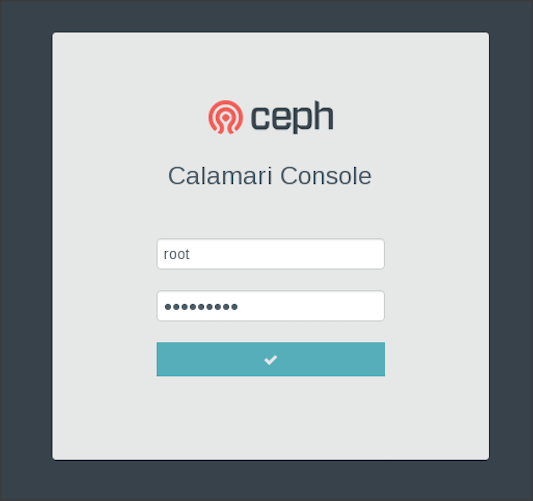
此用户名和密码将用于登录 Calamari 仪表板。
4. 打开浏览器并导航到 calamari 服务器的 IP 地址。您将看到 calamari 仪表板登录页面,提供我们在上一步中设置的登录详细信息。
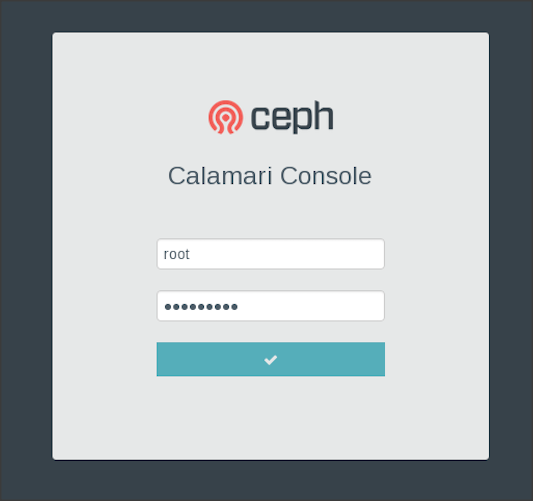
5 Calamari 将无法找到 Ceph 集群,并会要求添加集群,为此我们需要通过在 Ceph 客户端上安装 salt-minion 和 diamond 软件包将它们添加到仪表板。


将您的 Ceph 集群节点添加到 Calamari 仪表板
在所有 Ceph 集群节点上执行以下步骤,以便将它们添加到 Calamari 仪表板。
1. 安装我们已经构建的 diamond 软件包(上一步)
$ sudo yum install -y diamond-3.4.67-0.noarch.rpm
2. 创建一个默认的 diamond 配置文件。
$ sudo mv /etc/diamond/diamond.conf.example /etc/diamond/diamond.conf
3. 安装 salt-minion 软件包
$ sudo yum install -y salt-minion
$ sudo chkconfig salt-minion on
Ubuntu 用户:使用 ubuntu 包管理器安装 salt-minion
4. 配置 salt-minion,使其能够访问 Calamari 主服务器。
编辑 /etc/salt/minion 并添加您的 calamari 服务器主机名。
master: ceph-node4
5. 重启服务
$ sudo service salt-minion restart
$ sudo service diamond restart
6. 对所有 Ceph 集群节点重复这些步骤
授权 Ceph 集群添加到 calamari
配置好所有 Ceph 集群节点上的 salt-minion 和 diamond 后,您需要从 calamari 主服务器接受 salt-key
1. 从 calamari 主服务器检查未接受的 salt-key。
$ sudo salt-key -L
$ sudo salt-key -L
Accepted Keys
Unaccepted Keys
ceph-node1
ceph-node2
ceph-node3
Rejected Keys
$
2. 接受 salt-keys
$ sudo salt-key -A
The following keys are going to be accepted
Unaccepted Keys
ceph-node1
ceph-node2
ceph-node3
Proceed? [n/Y] y
Key for minion ceph-node1 accepted.
Key for minion ceph-node2 accepted.
Key for minion ceph-node3 accepted.
$ sudo salt-key -L
Accepted Keys
ceph-node1
ceph-node2
ceph-node3
Unaccepted Keys
Rejected Keys
$
3. 最后检查 calamari 仪表板,您应该能够看到 Ceph 集群。